How to set core hours in Sandtime.io
Core hours are the default start and end of the workday for your organization. To set them, open Settings > Time tracking > Core hours, pick a Start and an End time, and select Save. The length of that window becomes the expected working day, and Sandtime.io derives the daily, weekly, and monthly goals on the dashboard from it.
Only an Administrator can change core hours. Other roles see the same section with the start and end times shown read-only.
Step by step
- Open Settings.
- Go to Time tracking.
- Open the Core hours section.
- Set Start and End for the standard workday.
- Select Save.
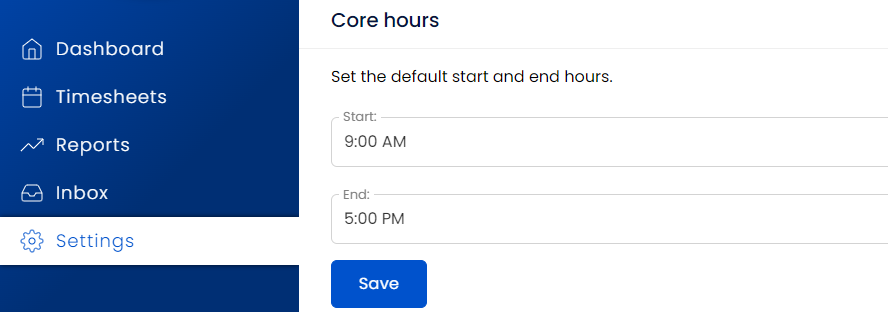
The description line in the section shows the resulting day length in brackets, so 9:00 AM to 5:00 PM reads as (8:00).
Can different people have different core hours?
Core hours are one organization-wide setting, not a per-member schedule. Everyone in the organization gets the same expected day. If separate teams need different schedules, keep them in separate organizations - see Create a new organization.
What do core hours change?
- The expected daily goal -
9:00 AMto5:00 PMis an 8-hour day. - The weekly and monthly goals derived from that day length. See Set a weekly goal.
- The Goals and Weekly goal widgets on the dashboard, which compare tracked time against those targets and show overtime once you pass them.
- The times that are prefilled when you add a new time entry, so a manual entry starts on the standard workday instead of an empty field.
Core hours do not restrict when time can be tracked. Entries before, after, or across the window are recorded normally - the setting only defines what a standard day is expected to look like.
How do weekends and public holidays affect the goal?
Expected hours are counted for Monday to Friday only, so a weekend day adds 0 hours to the goal. If a country is selected in Settings > Time tracking > Holidays, public holidays count as 0 as well, which lowers the goal for that week and month. With an 8-hour day, a week containing one public holiday targets 32 hours rather than 40.
To see weekend entries next to weekday ones, follow showing weekends in Timesheets.
For the complete overview, return to Settings, core hours, and dashboard goals.