Summary Report for Team Hours
Open Reports in Sandtime.io and the Summary report is already there: hours worked, who worked and the time on every project for this week, with nothing to set up. Change the dates and it recounts on the spot. It comes with the free plan for unlimited users.
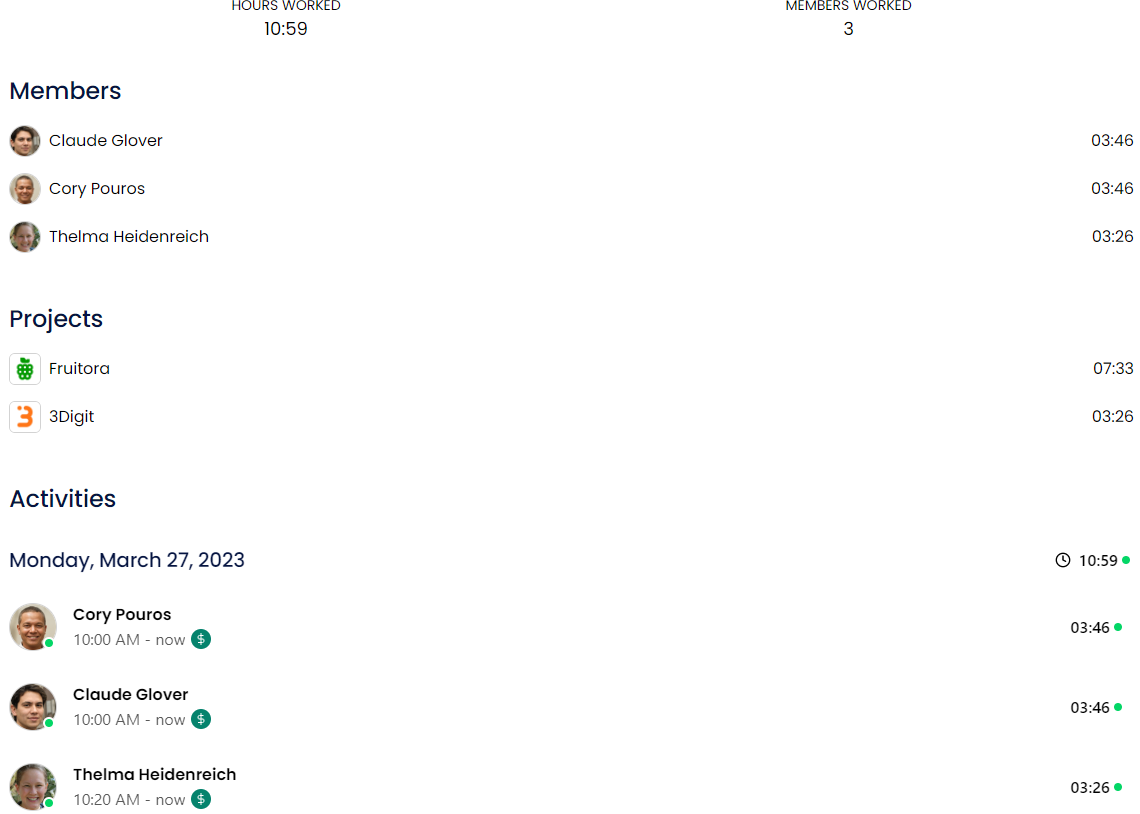
What the Summary report shows
Hours worked
The total for the chosen dates after your organization's time rounding, with a note whenever rounding changed it.
Members worked
How many people logged time, then each person's hours with the busiest first. Anyone with no time in the range is left out.
Time per project
Every project with time in the range, ordered by hours, so the one that took the most sits at the top.
Activities by date
The entries behind the totals, day by day and read-only, so checking the numbers never changes them.
Any date range
It opens on the current week. Switch to Last week, This month or Last year, or pick your own start and end dates.
No setup
It comes with every workspace, so there is nothing to build. Archived projects and members stay out of the totals.
Who uses the Summary report
- Team leads checking who logged time before the weekly review
- Managers switching to Last month to check totals before payroll or invoicing
- Owners seeing which project took most of the team's week
- Anyone spotting gaps: a person missing from the list logged nothing in the range
How to read it
- Open Reports and choose the Summary report.
- Pick a period in Date range, or set your own start and end dates.
- Read the totals, then the Members, Projects and Activities below them. When you need your own grouping or an export, build a custom report.
Summary report questions
What is the Summary report?
A built-in report that shows hours worked, how many people worked, each person's hours, time per project and the entries behind them for the dates you pick. It needs no setup and comes with every Sandtime.io workspace.
In what order does it list projects and members?
Projects and members are ordered by reported time, the busiest first. When two have the same time, they are listed alphabetically.
Is the date range saved?
No. The date range you pick applies while you look at it, and the report opens on the current week again next time. For a saved view with your own dates, grouping and columns, create a custom report.
How do I export the numbers?
Use a custom report. It can group by member, project, activity or date, add columns, and export to Excel or CSV. The Summary report is for reading, not exporting.
Is it free?
Yes. Sandtime.io is free for unlimited users, and the Summary report is part of every workspace.
See your team's week in one report
Free for unlimited users. No credit card required.