Project Management for Time Tracking
Organize work into projects, assign the right people, and see exactly where time goes. Built for teams that need visibility without complexity.

What you get with Sandtime.io project management
Project creation
Create projects for clients, internal work, or any category you need. Consistent naming keeps reports and exports clean.
Team assignment
Add people to each project so they can log time against it. Users only see the projects assigned to them.
Billable tracking
Mark projects as billable or non-billable. Client work and internal overhead stay cleanly separated in every report.
Project visibility
Control which projects each member can access. Keep sensitive client work visible only to the right people.
Per-project reports
Filter any report by project to see hours, costs, and revenues for exactly the work scope you need.
Roles and permissions
Administrators oversee every project and member. Project Administrators oversee the ones they are assigned to. Users report their own time.
Who uses project time tracking
- Agencies billing clients per project
- Teams tracking time against sprints or deliverables
- Managers monitoring project health without micromanagement
- Organizations separating overhead from client work
In short: a Sandtime.io project is a bucket for time with rules attached. It carries a billable default, a member list that decides who can log time to it and who sees whose hours, and each member's revenue rate. Administrators create as many projects as the work needs, and Sandtime.io is free for unlimited users. It tracks time against projects; it does not plan them.
Setting up a project, step by step
- Open Settings, go to Projects, and click Create new project. Only an Administrator sees the button. A new Untitled project opens, and its creator becomes its first Project Administrator.
- Fill in the Name, and optionally a Picture and Notes. A stable name such as "Acme - Website redesign" still reads well in a report two years later.
- Leave Billable on for client work, or switch it off for internal time such as admin, sales, or breaks. Every project starts out billable, and each entry keeps its own Billable switch for the exceptions.
- In the Members section, pick people in Assign new members and click Assign members. Only members can log time to the project.
- Open a member to set their Role within the project and, under Revenue, their hourly rate with Add rate.
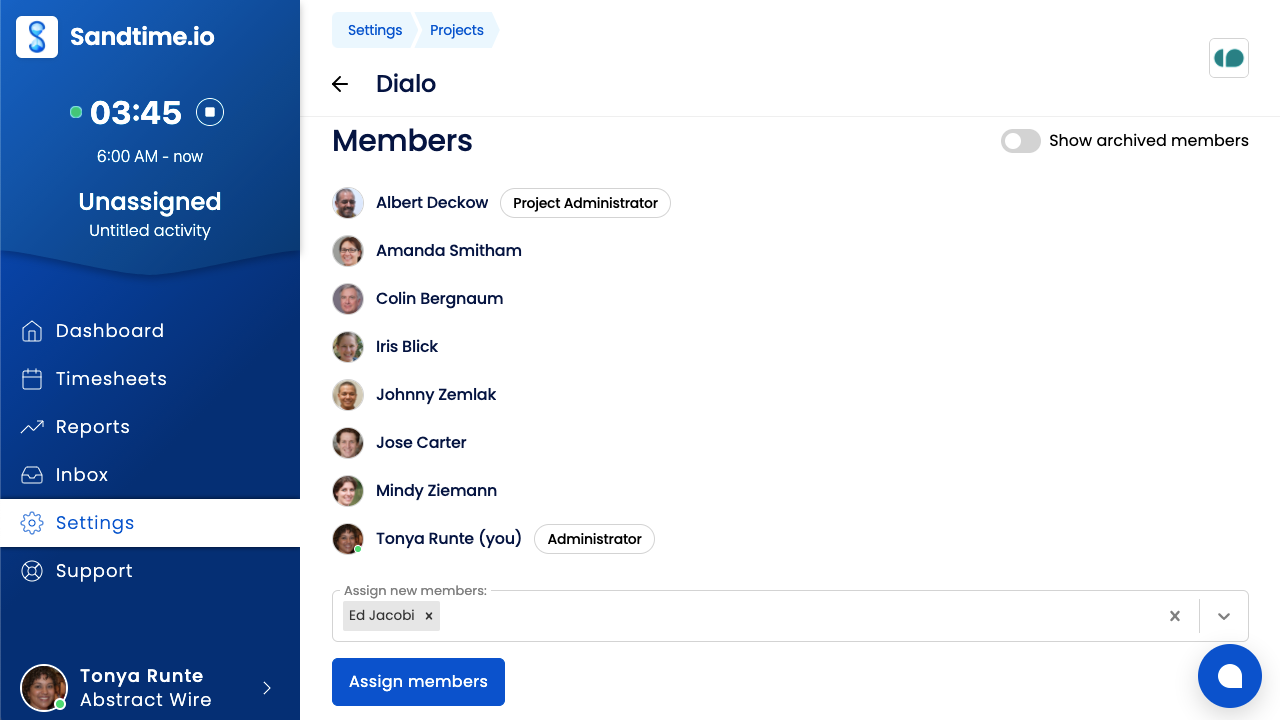
Who sees and changes what
Project membership does more than fill a drop-down. It decides visibility.
- An Administrator sees every project, every member, and every entry, and is the only role that can create, archive, or delete a project.
- A Project Administrator is assigned per project. They can edit its name, picture, notes, and billable setting, see the time reported to it, and see the cost and revenue rates of its members. When they add people or change a role, the change goes to an Administrator as a request.
- A User sees only the projects they belong to, and sees a teammate's hours only on the projects they share. A User with no projects yet gets a Request project assignment button.
Nobody but the person who recorded an entry, or an Administrator, can edit it. Being a Project Administrator does not extend to a colleague's time. The roles and permissions page has the full breakdown.
A worked example: a five-person studio
A studio has an owner (the Administrator), a project manager, and three designers. The owner creates three projects: "Acme - Website redesign" and "Nordlicht - Brand refresh", both billable, and "Internal - Admin" with Billable switched off. Designers A and B join Acme, designer C joins Nordlicht, the project manager joins both client projects as their Project Administrator, and everyone joins Internal.
In one week, each of the four logs 36 hours:
- Acme: 30 hours from A, 28 from B, and 12 from the project manager, 70 in total.
- Nordlicht: 32 hours from C and 10 from the project manager, 42 in total.
- Internal: 6, 8, 4, and 14 hours, 32 in total.
With Reported time and Billable time as metrics, a report grouped by Project shows 144 hours, 112 of them billable: a 77.8% billable ratio. Designer C sees A's internal hours, because they share Internal, but not A's Acme hours. When Acme wraps up, the owner archives the project: the entries stay in the record, drop out of reports unless Show archived is on, and cannot be edited until the project is restored.
What it deliberately does not do
Sandtime.io keeps projects to what time tracking needs, so some project tools are out of scope:
- No tasks, subtasks, Gantt charts, or kanban boards. The activity name carries the detail.
- No budgets or estimates. The free project budget and billable hours template covers that in a spreadsheet, fed by a report export.
- No separate client records. Put the client in the project name.
- No invoicing. Reports export to Excel and CSV for your invoicing tool.
Deleting a project is permanent and removes every entry reported to it along with its revenue rates, so archive instead whenever the record may matter later.
How it connects to the rest of Sandtime.io
Projects become rows on the weekly timesheet, a Group by option in reports, and the place where rates in several currencies are set. Project visibility explains the sharing rules in more detail, and the project setup guide walks through the screens. Coming from an agency suite with budgets and resource planning? See how Sandtime.io compares with Productive, or read about methods of recording time in projects.
Project questions
How many projects can I create?
As many as the work needs. Projects are how time is separated by client, engagement, or internal category, and there is no project limit.
Can a project be marked non-billable?
Yes. Any project can be non-billable, which keeps breaks, admin, and internal work out of billable totals while still recording the hours.
What happens to time on an archived project?
The time stays in the record. Archiving removes the project from everyday selection and filters its entries out of results unless archived items are shown.
Can people be limited to certain projects?
Yes. Project membership decides who can report time against a project, so a contractor sees the engagement they are on rather than the whole workspace.
Who can create projects?
Organization Administrators, from Settings, Projects, and Create new project. Whoever creates a project becomes its first Project Administrator, and there is no limit on how many projects an organization can have.
Can I plan tasks and budgets in Sandtime.io?
No. Sandtime.io tracks time against projects rather than planning them, so there are no tasks, budgets, estimates, or Gantt charts. The activity name carries the detail, and a report export can feed a budget kept in a spreadsheet.
Can one person have a different rate on each project?
Yes. Revenue rates are set per member within a project, so the same person can be billed at one rate on one project and another rate, even in another currency, on the next. Only Administrators set rates.
What is the difference between archiving and deleting a project?
Archiving keeps every entry, hides the project from its members and from reports unless Show archived is on, and can be undone. Deleting is permanent: it removes every entry reported to the project along with its revenue rates.
Manage your projects
Free for unlimited users. No credit card required.