How to Set a Weekly Goal in Sandtime.io
In Sandtime.io, the weekly goal is not a number you type - it is calculated automatically from your core hours (the start and end time of your standard workday). To change the weekly goal, go to Settings > Time tracking > Core hours and set the start and end time. The dashboard recalculates the goal as soon as you save.
Common examples:
9:00 AMto5:00 PM= 8 h/day = 40 hours per week (full-time default)9:00 AMto3:00 PM= 6 h/day = 30 hours per week (part-time)9:00 AMto1:00 PM= 4 h/day = 20 hours per week9:00 AMto6:00 PM= 9 h/day = 45 hours per week
There is no separate Goals, Targets, or Workload section in Sandtime.io - the core hours setting is the only place that controls the goal.
Step by step
- Open
Settings. - Go to
Time tracking > Core hours. - Set the Start time and End time for your standard workday.
- Select Save.
The weekly target on the dashboard recalculates automatically. The same setting drives the daily and monthly goals - changing core hours updates all three at once. For the full walkthrough of that screen, see How to set core hours.
Core hours are an organization-wide setting, and only an Administrator can change them. If the fields are read-only for you, ask an administrator of your organization to adjust them.
Why core hours and not a direct number?
Core hours define the working day across the whole organization, not just the weekly total. They set how daily, weekly, and monthly targets are calculated, what times are prefilled on a new time entry, and what a standard day looks like for reporting. Adjusting the start and end time is equivalent to setting the daily hours target, which is then counted across the working days of the week to produce the weekly number.
Adjust for part-time or flexible schedules
If the dashboard shows a goal that does not match your actual hours - for example, 40 hours when you work 30 - just move the end time earlier:
- Working
9:00 AMto3:00 PM? That is a 30-hour weekly goal. - Working
8:00 AMto12:00 PM? That is a 20-hour weekly goal. - Working a compressed four-day week of 10 h/day? Set
8:00 AMto6:00 PMfor a 50-hour goal across five registered days, or keep 40 hours and treat the Friday off as a free day in the timesheet.
Where the goal appears
The Weekly goal widget on the Sandtime.io dashboard shows your progress as tracked of goal - for example, 15:30 of 40:00 - with the same figure as a percentage in the gauge. Once you pass the target, the widget adds an Overtime line with the hours above it. The Goals widget next to it plots the daily, weekly, and monthly targets together, all driven by the same core hours setting.
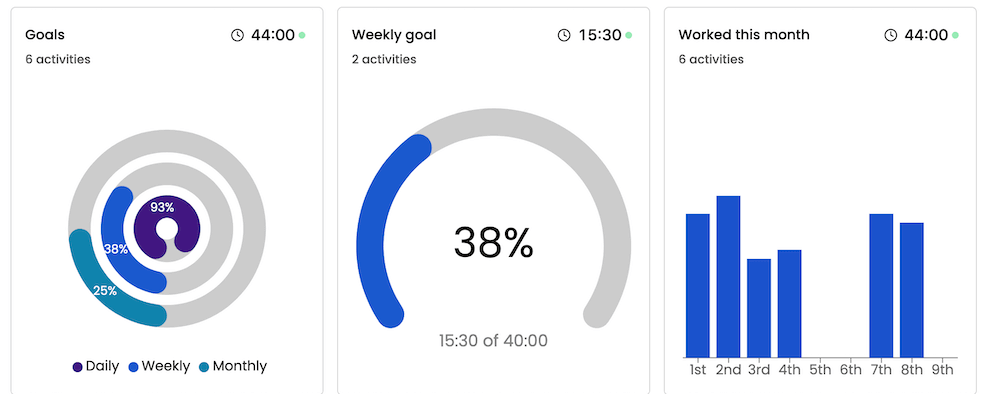
Durations follow your duration format preference, so the same widget can read 15:30 of 40:00 or 15h 30m of 40h depending on the setting.
Public holidays lower the goal
Expected hours are counted per working day, so a week is not always five full days. If a country is selected in Settings > Time tracking > Holidays, each public holiday counts as 0 expected hours: with an 8-hour day, a week containing one public holiday targets 32 hours instead of 40.
What the weekly goal does not cover
Weekend hours are not counted toward the five-day goal by default. Time logged on Saturday or Sunday adds to the weekly total shown on the dashboard, but the goal target itself reflects a Monday-to-Friday schedule. If your team regularly works weekends, showing weekends in Timesheets makes those hours visible alongside weekday entries.
For the complete overview, return to Settings, core hours, and dashboard goals.