Free Timesheet Software with Approvals
Sandtime.io is timesheet software for teams that bill clients or report hours to funders. Weekly timesheets, approvals, automatic locking, and reminders are free for unlimited users, with no seat limit and no credit card.
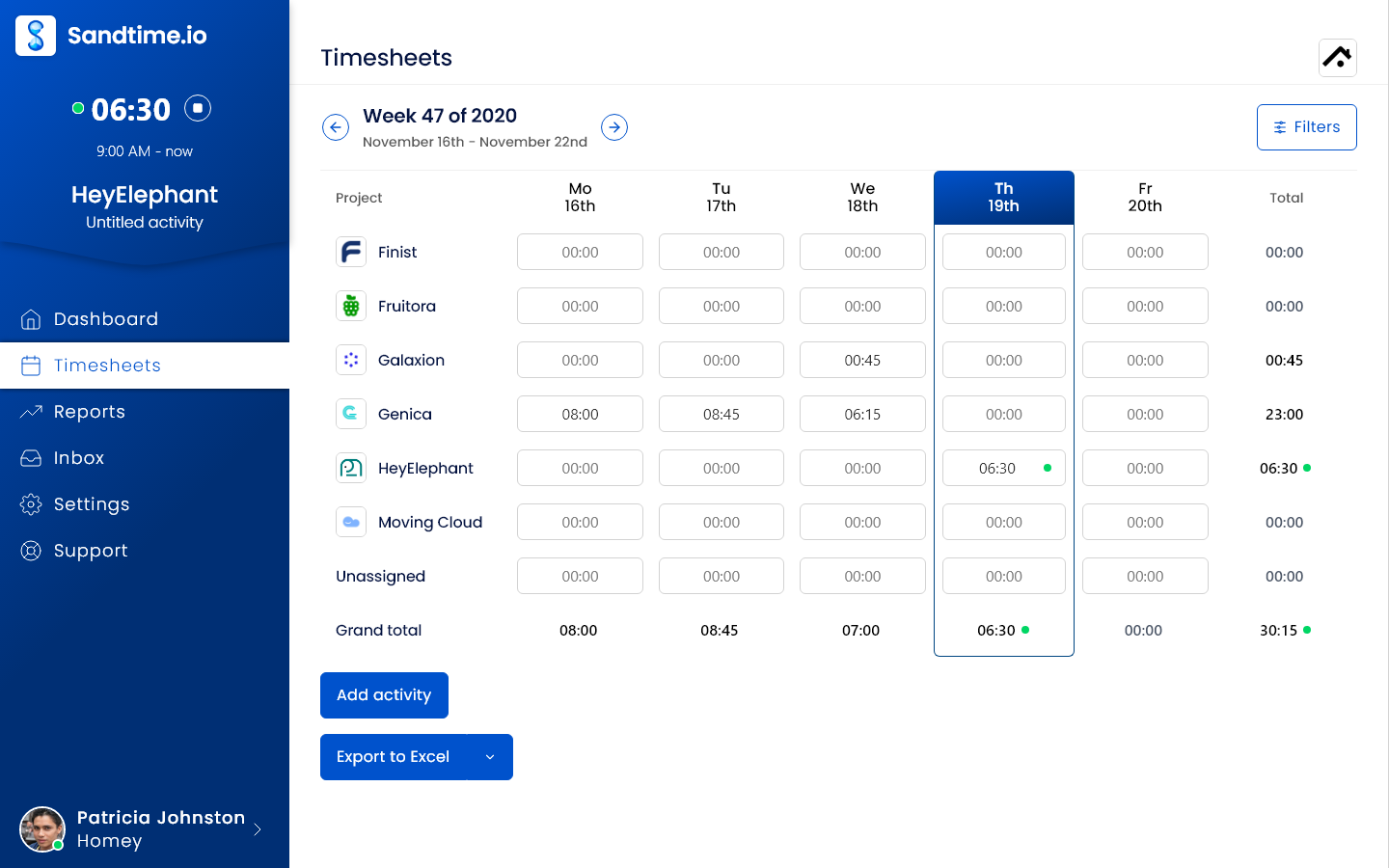
How a timesheet week works in Sandtime.io
Eight steps from the first entry to the export, with the labels you will see in the app.
Fill in the week
Run the timer while you work, or add entries afterwards with Add activity. Timesheets lays the week out by project and day, so a missing afternoon shows up before anyone has to ask.
How the timer worksGet a reminder instead of a Slack message
With auto-locking on, Sandtime.io emails a Fill timesheet reminder on Friday at 6 PM in the organization’s time zone, before the week locks. The email is off by default, so each person switches it on in their notification settings.
How reminders workSubmit the week
Each person opens their week and selects Submit for approval in the Approvals section. The confirmation says the week will be locked once approved, so corrections happen first.
How to submit a weekApprove from email
Every Administrator gets an email with a summary of the week and Approve, View, and Reject buttons. Approving or rejecting takes one click in the email, and the same request waits in the Inbox.
How approvals workLock what was approved
An approved week locks, so the hours behind payroll or an invoice stop moving. Turn on Auto-locking timesheets in the settings and every past week locks as well, submitted or not.
How locking worksCorrect a locked week by request
A member who spots a mistake selects Unlock timesheet and sends the request. Once an Administrator approves it, the week reopens for the Unlock duration you set, from 30 minutes to 24 hours, and with auto-locking on it locks again when that time runs out.
How to unlock a weekReview the month in one report
Open Reports and the Summary report is already there: hours worked, who worked, and the time on every project for any date range, with nothing to set up.
About the Summary reportExport the approved hours
Export to Excel and Export to CSV sit under the timesheet grid. Reports add billable and non-billable time, cost and revenue rates, and an Invoices template with totals per project.
About Excel export
Setting up for the first time? Follow the getting started checklist, then invite your team.
Who charges for timesheet approvals
Approvals are where most time trackers start charging. U.S. list prices per user, billed annually, as of September 29, 2026:
- ClockifyFree plan up to 5 users. Approvals on Standard, $5.49 per user per month.Pricing page
- My HoursFree plan up to 5 active users. Approvals on Pro, $8 per user per month.Pricing page
- TimeCampFree for unlimited users. Approvals on Ultimate, $9.99 per user per month.Pricing page
- Toggl TrackFree plan up to 3 users. Approvals on Premium, $16 per user per month.Pricing page
- JibblePay-period timesheet approvals free for unlimited users, built around clock-ins rather than client projects.
- Sandtime.ioApprovals, locking, and reminders free for unlimited users.
At those prices, approvals for a team of 15 cost $240 a month on Toggl Track Premium and $82.35 on Clockify Standard. On Sandtime.io they cost $0.
Who uses Sandtime.io for timesheets
Teams whose invoices, payroll, or grant reports depend on hours someone has signed off.
Agencies
One project per client, retainer, or support contract, timesheets in before month-end invoicing, and cost and revenue rates that show what each client earned.
Consultants
Client and project on every entry, with approved and locked weeks that back up the invoice when a client asks about it.
Accountants
Hours per client closed every month, locked after approval, and exported to Excel for billing and for the file.
Nonprofits
Staff time by program or grant, approved and locked before it goes into a funder report. Registered nonprofits can also ask about a custom offer.
What Sandtime.io timesheets do not do
Worth knowing before you move the team over.
- No clock-in terminal, attendance register, or GPS. People record hours against projects, with a timer or afterwards. If attendance is the job, read the comparison with Jibble.
- No payroll engine. Export approved hours to Excel or CSV for the payroll software you already use.
- No invoicing engine. The Invoices report gives time, rate, and totals per project to copy into your invoicing tool.
- No screenshots, keystroke logging, or activity monitoring. A timesheet holds what the person reported, as the employee monitoring answer explains.
If a printable sheet is all you need, the timesheet templates are free to download.
Timesheet software questions
Is Sandtime.io timesheet software free?
Yes. Timesheets, approvals, automatic locking, unlock requests, reminders, reports, and Excel or CSV export are free for unlimited users, with no seat limit and no credit card. Registered nonprofits can also ask for a custom offer.
Which timesheet software has free approvals?
Sandtime.io includes timesheet approvals, locking, and reminders free for unlimited users. In a comparison of 15 products checked September 29, 2026, Jibble also offers free pay-period approvals built around clock-ins, while Clockify puts approvals on Standard, My Hours on Pro, TimeCamp on Ultimate, and Toggl Track on Premium, each priced per user.
Can timesheets be approved from email?
Yes. When a week is submitted, every Administrator gets an email with a summary of the week and Approve, View, and Reject buttons. One click on approve or reject records the decision, and the request also waits in the Inbox.
What happens after a timesheet is approved?
It locks, so the approved version is the one used for payroll or invoicing. Nobody edits the week in place afterwards: a change goes through an unlock request, and every request records who asked, who decided, and when.
Can an employee fix a locked timesheet?
Yes, by asking for it. They select Unlock timesheet on the week, or on the entry they tried to edit, and send the request. Once an Administrator approves it, the week reopens for the unlock duration set in the settings, 30 minutes by default and up to 24 hours, and with auto-locking on it then locks again.
Does it work for teams of 15, 50, or 100 people?
Yes. There is no seat limit and no team size at which approvals, locking, or reminders become paid, so a team of 15 pays the same as a team of 100: nothing. Invite everyone who tracks time and give the people who approve weeks the Administrator role.
Can I export timesheets to Excel?
Yes. Export to Excel and Export to CSV sit under the timesheet grid, and reports export the same way, with billable time, rates, and currency included.
Does Sandtime.io track attendance or location?
No. Sandtime.io records hours against projects, entered with a timer or afterwards. There are no clock-in terminals, no GPS, no screenshots, and no activity monitoring.
Put this week’s timesheets through approval
Create a free Sandtime.io account, invite the team, and turn on auto-locking in the settings. No credit card and no seat limit.