From Approved Timesheets to Client Billing: A Worked Example
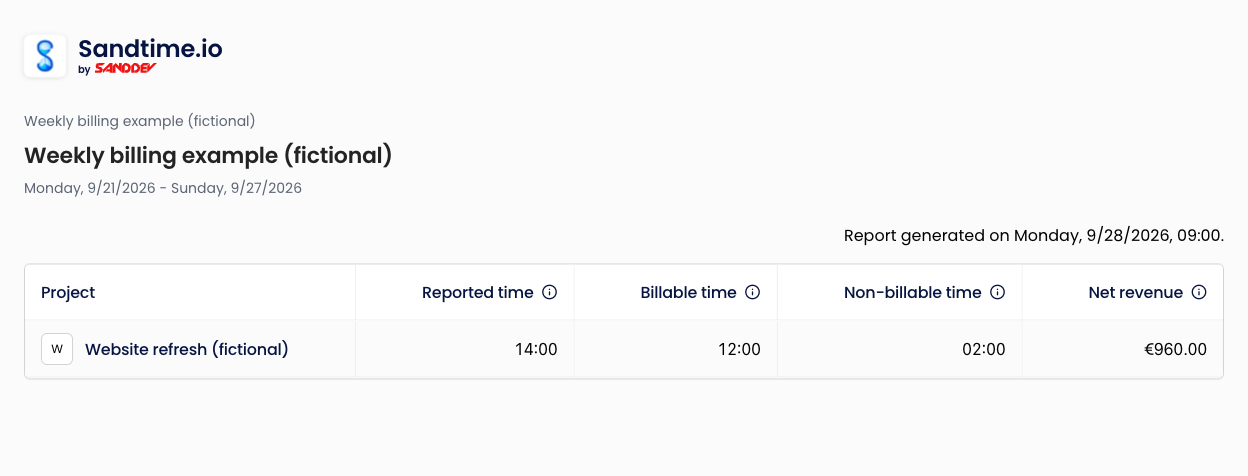
Fourteen recorded hours do not mean fourteen hours to invoice. In this fictional week, 12 hours are billable and 2 are internal administration. At EUR 80/hour, with zero tax and no rounding, the billing handoff is EUR 960. Sandtime.io prepares the time report; your existing invoicing process creates and sends the invoice.
No account or email required. These are real Sandtime.io report exports generated from isolated fictional records, not a manually assembled spreadsheet. The screenshots below show the actual shared-report interface using the same example. They do not show a customer account.
The week and the arithmetic
The project is Website refresh (fictional), worked by Alex Example, September 21-27, 2026. The reporting time zone is Europe/Warsaw. Each session lasts exactly two hours:
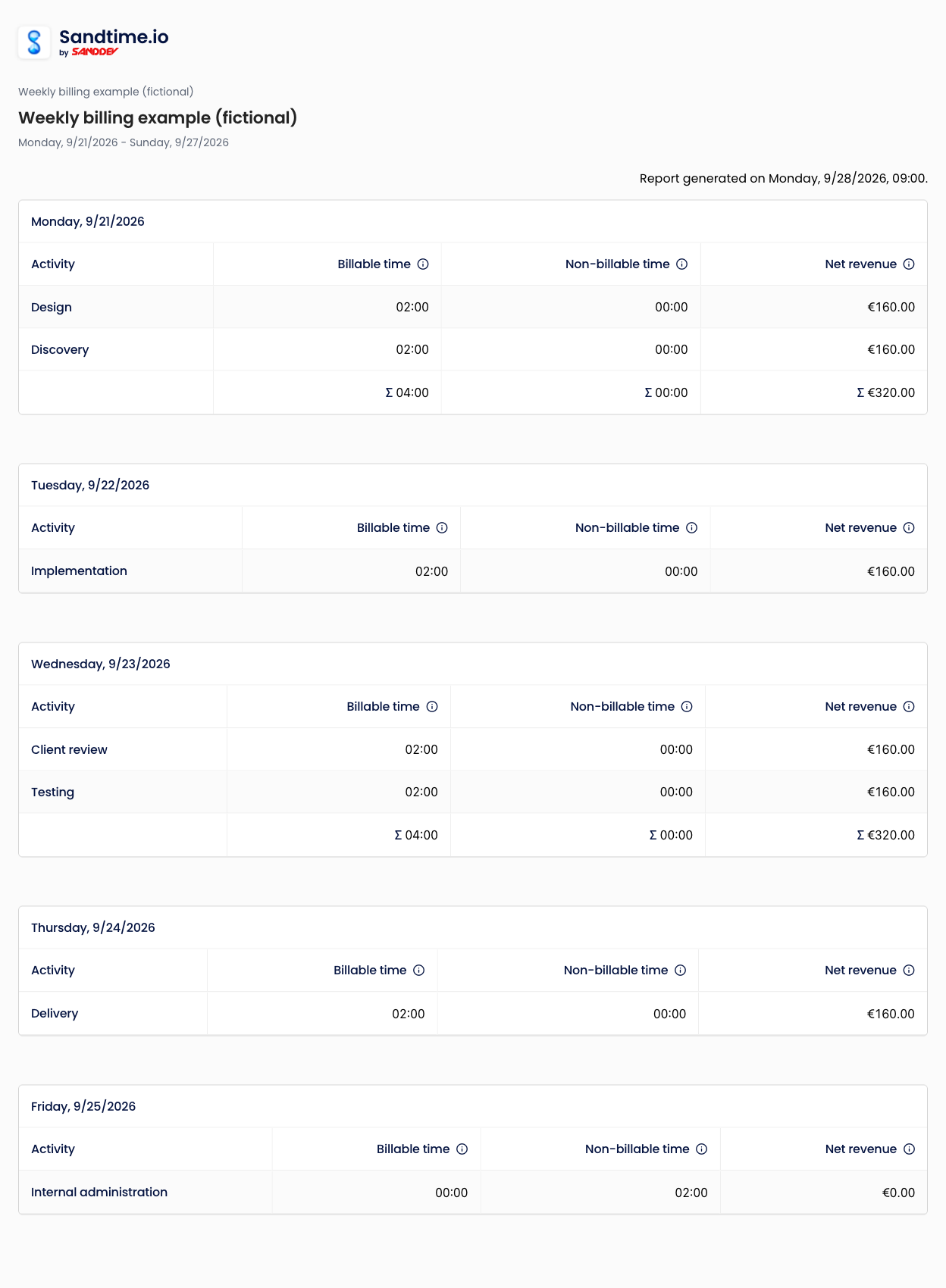
- Monday: discovery and design, 4 billable hours.
- Tuesday: implementation, 2 billable hours.
- Wednesday: testing and client review, 4 billable hours.
- Thursday: delivery, 2 billable hours.
- Friday: internal administration, 2 non-billable hours.
Reported time is 14:00. Billable time is 12:00. Non-billable time is 02:00. The calculation is 12 × EUR 80 = EUR 960. Tax is zero, so net and total revenue are both EUR 960. Billing all 14 hours would incorrectly add EUR 160.
Zero tax is an assumption for this example, not advice about your invoices. Confirm your contract, currency, taxes, and any rounding policy separately.
Record the work and the rate
Use manual time entries or timers to record each session against the project. Mark the six client-work sessions billable and the administration session non-billable. Use descriptions that the reviewer can recognize, rather than “work.”
On the member within the project, select Add rate. Set Hourly rate to 80, Currency to EUR, and Tax rate to 0, with a date range covering this week. This is a revenue rate, not the organization member’s cost rate. An administrator should check the rate: members with the User role do not see their assigned rates.
Keep report rounding disabled for this example. The rate and revenue guide explains the setup; historical rates explain why a later rate should not rewrite this week.
Submit, review, and preserve the approved week
Open your own weekly timesheet and select Submit for approval in Approvals. Correct missing or misclassified sessions before submitting. The action is available only while your own week is unlocked and not already waiting for a decision.
An administrator reviews the project, dates, session descriptions, and billable flags, then selects Approve or Reject. Approval locks the week. For a later correction, use the unlock-request process, make the correction during the permitted window, and review the billing handoff again.
The approval guide documents those conditions. Do not treat an export as proof of approval: the example report contains hours and amounts, not an approval-status column. Verify the week’s approval and lock before using its figures for billing.
Configure a report that answers the billing question
In Reports, create or edit a custom report for September 21-27 and this project. Group by Project and include Reported time, Billable time, Non-billable time, Revenue per hour, Revenue tax rate, Net revenue, Revenue tax, and Total revenue.
Keep non-billable work visible. Filtering it away would hide the reason the recorded 14 hours become only 12 billable hours. The report applies revenue to billable work; the administration session contributes time but no revenue.

For a line-by-line review, group by Year-Month-Day and Activity. The itemized report guide also explains start and end time columns.
Export and reconcile with your invoice process
Use Export to Excel or Export to CSV below your report. The read-only shared-report screens above do not show the export button; the downloadable files were generated through the same report/export pipeline used by the signed-in application.
Before creating the invoice in your existing tool:
- Match the project and September 21-27 period to the approved, locked timesheet.
- Confirm 14 reported hours = 12 billable + 2 non-billable.
- Confirm the agreed EUR 80/hour rate and zero-tax example assumption.
- Carry only 12 billable hours and EUR 960 into the invoice draft.
- Compare the draft’s quantity, currency, rate, and total with the exported record. Keep the export and approval reference with the billing handoff.
Excel stores durations as numeric fractions of a day, displayed as hours and minutes. CSV writes durations such as 12:00 and localized currency text. If an invoice tool expects decimal hours, enter 12, not 12:00 or the spreadsheet’s underlying 0.5 day value.
Use the invoice-timesheet reconciliation template to record differences and references. Sandtime.io does not create or send invoices, post accounting entries, or confirm payment.
Repeat the test with one of your projects
The useful result is not merely a downloaded file. It is a reviewer-agreed set of hours that matches the amount your client will be billed. Try one full weekly cycle before changing tools, keeping your invoice process in place.
Compare the reporting workflow, review timesheet approvals, or compare alternatives. Sandtime.io is free for unlimited users. Payroll, legal billing, and resource planning remain separate decisions.
About the contributors


Przemysław Zalewski
Sandtime.io engineer and Sanddev team member who reviews product accuracy, technical details, sources, and editorial quality.
LinkedInEmailSanddev profileWebsite